
Initial Setup
Clone Yugen, configure providers, and start development
Last updated on: November 8, 2025
Complete guide to get Yugen running locally.
Clone and Install
Create a Fresh GitHub Repository
gh repo create your-project-name --privateThis creates a new private GitHub repository for your project.
Clone Yugen
git clone git@github.com:code-and-creed/yugen.git your-project-name
cd your-project-nameInstall Dependencies
bun installThis installs all dependencies for the monorepo, including frontend and backend packages.
Remove Remote Repository and add new one
git remote remove upstream
git remote add origin git@github.com:your-username/your-project-name.git
Rename occurences of yugen/Yugen with your project name
bun run rename-project [your-project-name]Commit and Push Changes
git add .
git commit -m "Initial commit"
git push origin main
Create Environment File
cp .env.convex.dev.example .env.convex.devThis creates your development environment file where you'll add all provider credentials.
Provider Setup
Set up these provider accounts and add the credentials to your .env.convex.dev file:
1. Convex
Just sign up for a free account if you haven't already.
No credentials needed yet - we'll create the project in the next section.
2. BetterAuth
Generate Auth Secret:
openssl rand -base64 32Add this value to your .env.convex.dev file as BETTER_AUTH_SECRET.
OAuth Providers (Optional):
Add Google, GitHub, or other OAuth providers for social authentication.
Google OAuth Setup
- Go to Google Cloud Console
- Create a new project or select existing
- Navigate to APIs & Services → Credentials
- Click Create Credentials → OAuth client ID
- Configure consent screen if prompted
- Application type: Web application
- Add authorized redirect URIs:
http://localhost:3002/api/auth/callback/google(development)https://yourdomain.com/api/auth/callback/google(production)
- Copy Client ID and Client Secret
Add to .env.convex.dev:
GOOGLE_CLIENT_IDGOOGLE_CLIENT_SECRET
GitHub OAuth Setup
- Go to GitHub Developer Settings
- Click New OAuth App
- Fill in:
- Application name: Your App Name
- Homepage URL:
http://localhost:3002(or your domain) - Authorization callback URL:
http://localhost:3002/api/auth/callback/github
- Click Register application
- Copy Client ID
- Click Generate a new client secret → Copy it
Add to .env.convex.dev:
GITHUB_CLIENT_IDGITHUB_CLIENT_SECRET
You'll also need to configure these providers in packages/backend/convex/auth.ts. See the BetterAuth Social Providers docs for more options.
3. Polar.sh (Payments)
Get these values:
- Create an organization
- Copy your Organization ID (Settings → Profile → Identifier)
- Go to Settings → API → Create Personal Access Token
- Call it
devand set the expiration toNo expirationclickSelect Allfor the scopes - Click
Create Token
Add these to your .env.convex.dev file as:
POLAR_ORGANIZATION_IDPOLAR_ACCESS_TOKEN
We'll setup the POLAR_WEBHOOK_SECRET later in the setup process.
4. Resend (Email)
Get API Key:
- Go to Resend Dashboard → API Keys → Create
- Copy the API key (starts with
re_)
Add these to your .env.convex.dev file as:
RESEND_API_KEYSENDER_EMAIL(useonboarding@resend.devfor development)COMPANY_NAME(your company name)
Domain Setup (Production only):
- Go to Domains → Add Domain
- Enter your domain (e.g.,
yourdomain.com) - Add required DNS records to your domain registrar:
- TXT record for domain verification
- MX record for email routing
- CNAME record for SPF/DKIM
- Wait for verification (12-48 hours for DNS propagation)
For development, use Resend's sandbox domain (onboarding@resend.dev). Production requires your own verified domain.
5. Cloudflare R2 (Storage)
Create R2 Bucket:
- Navigate to Storage & databases → R2 object storage → Overview
- Click Create Bucket
- Name:
your-bucket-name-dev(for development) - Click Create Bucket
Get API Credentials:
- In the R2 dashboard, click Manage (next to "API Tokens" in the Account Details section)
- Click Create Account API Token
- Configure the token:
- Token name: Give it a descriptive name (e.g., "Yugen Dev")
- Permissions: Select Object Read & Write
- Specify bucket(s): Choose Apply to specific buckets only
- Select your bucket from the dropdown (e.g.,
your-bucket-name-dev) - TTL: Leave as Forever (or set expiration if preferred)
- Click Create Account API Token
- Copy these values immediately (Secret Access Key is only shown once!):
- Access Key ID →
R2_ACCESS_KEY_ID - Secret Access Key →
R2_SECRET_ACCESS_KEY
- Access Key ID →
- Get your Account ID from the R2 dashboard (shown in the Account Details section) →
R2_ACCOUNT_ID
Set CORS Policy:
- Go to Your Bucket → Settings → CORS Policy
- Add this policy:
[
  {
    "AllowedOrigins": ["http://localhost:3002", "https://*.ngrok.app"],
    "AllowedMethods": ["GET", "PUT", "POST", "DELETE"],
    "AllowedHeaders": ["*"],
    "ExposeHeaders": ["ETag"],
    "MaxAgeSeconds": 3600
  }
]
Add these to your .env.convex.dev file as:
R2_ACCESS_KEY_IDR2_SECRET_ACCESS_KEYR2_ACCOUNT_IDR2_BUCKET_NAME
Configure Services
Setup Convex
bun run dev:setup- Follow the prompts to login to Convex and create a Cloud Deployment
- Create new project when prompted (Cloud Deployment)
- This creates
packages/backend/.env.localwith your dev Convex URLs
If you see a 502 Bad Gateway error: This is usually a temporary Convex API issue. Wait a few minutes and try again. Check Convex Status if the issue persists.
After setup completes, add these to packages/backend/.env.local:
VITE_CONVEX_SITE_URL=https://your-project.convex.site
SITE_URL=http://localhost:3002
Example: If your CONVEX_URL is https://zany-turtle-95.convex.cloud, then:
VITE_CONVEX_SITE_URLshould behttps://zany-turtle-95.convex.siteSITE_URLshould behttp://localhost:3002(web server runs on 3002, Cloudflare Workers dev server uses 3001)
Verify Environment Variables
Your .env.convex.dev should now have all credentials:
# BetterAuth
BETTER_AUTH_SECRET="<your-generated-secret>"

# Polar.sh
POLAR_ORGANIZATION_ID=<your-org-id>
POLAR_ACCESS_TOKEN=polar_pat_...

# Resend
RESEND_API_KEY=re_...
SENDER_EMAIL=onboarding@resend.dev
COMPANY_NAME=YourCompanyName

# Cloudflare R2
R2_ACCESS_KEY_ID=...
R2_SECRET_ACCESS_KEY=...
R2_ACCOUNT_ID=...
R2_BUCKET_NAME=your-bucket-name-dev

# Site URL
SITE_URL=http://localhost:3002
Create Frontend Environment
From project root:
cp apps/web/.env.example apps/web/.env.localUpdate with your Convex URLs:
VITE_CONVEX_URL=https://your-project.convex.cloud
VITE_CONVEX_SITE_URL=https://your-project.convex.site
SITE_URL=http://localhost:3002
Apply Environment Variables
Upload all credentials to Convex:
bun run setup:convex:devThis uploads your environment variables to your Convex development environment.
Login to Cloudflare
From the apps/web/ directory:
bun alchemy loginThis will open your browser to authorize with Cloudflare. Alchemy is the IaC tool that connects to Cloudflare - you're authenticating with Cloudflare, not creating an Alchemy account.
Make sure you're in the apps/web/ directory (where alchemy.run.ts exists).
Start Development
Start Cloudflare Workers Dev Server
Important: Start this first to create the required configuration files.
From the apps/web/ directory:
bun alchemy devMake sure you're in the apps/web/ directory (where alchemy.run.ts exists).
Wait for this to start successfully (runs on http://localhost:3001).
Start All Services
In a new terminal, from project root:
bun run devThis uses TurboRepo to start the web server, Convex backend, and Fumadocs.
Ports: Cloudflare Workers dev server runs on http://localhost:3001, and the web server runs on http://localhost:3002 (since 3001 is already in use).
Your app is now running at http://localhost:3002 ✅
Verify Setup
After starting the development servers:
- Visit the App
- Open
http://localhost:3002in your browser - You should see the default Yugen landing page
- Open
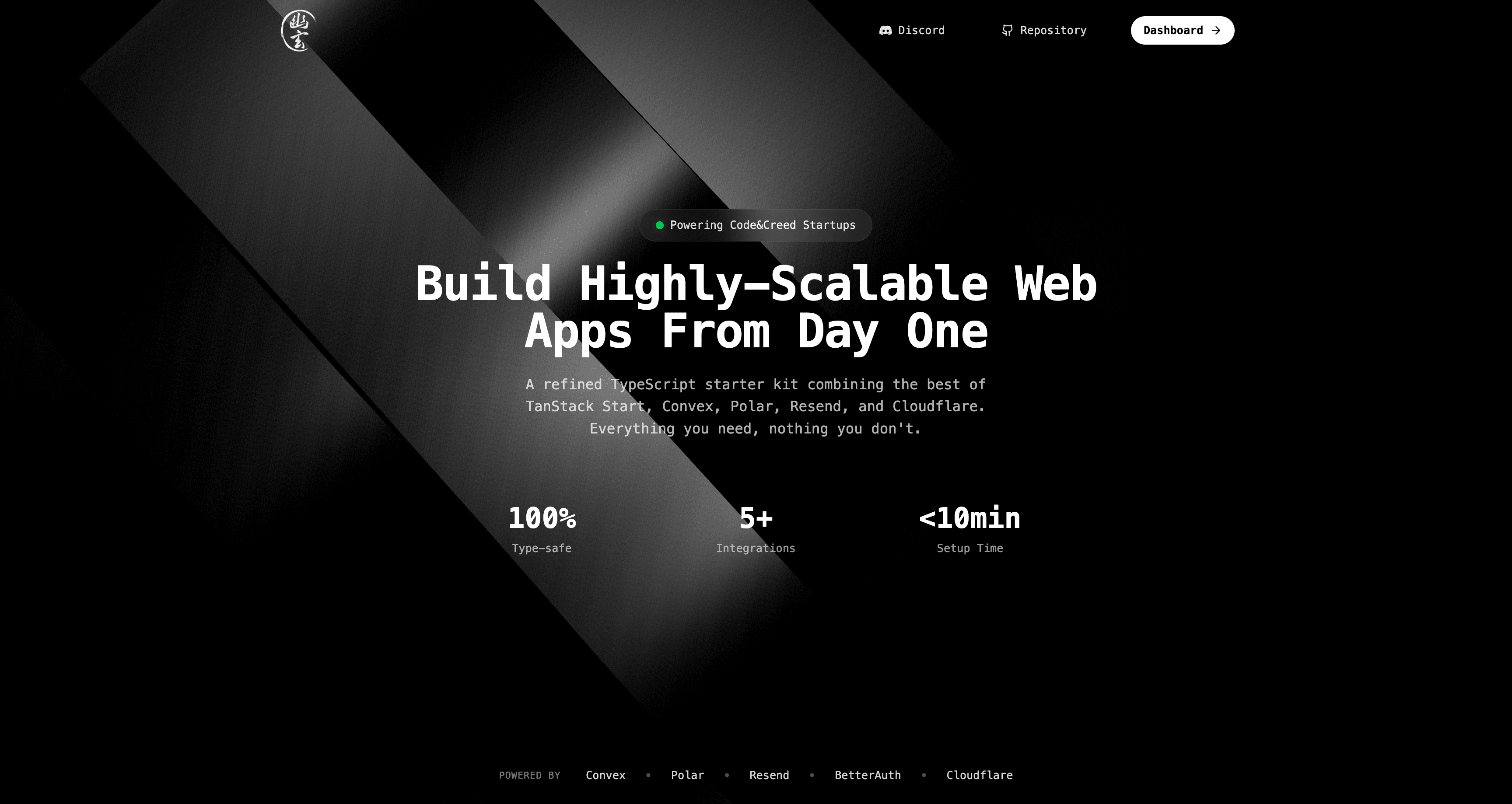
- Test Authentication
- Click sign up button
- Create an account with email/password
- Should redirect after successful authentication
Troubleshooting "Invalid Origin" Error: If you see an "invalid origin" error when signing up or signing in, restart both dev servers (bun alchemy dev and bun run dev). Also verify all environment variables are in the correct files (.env.convex.dev (i.e. in convex), apps/web/.env.local, packages/backend/.env.local).
- Check Convex Dashboard
- Go to Convex dashboard → Data → Tables
- Click on
userstable - Verify new user appears ✅
Testing Webhooks Locally (Optional)
To test Polar.sh webhooks (payments only) or email sending locally, you'll need ngrok:
Install ngrok
brew install ngrokStart ngrok
ngrok http 3002Use port 3002 (web server), not 3001 (Cloudflare Workers dev server). You may need to buy an ngrok pro plan because they limit usage for free users.
Copy the https:// URL.
Update Environment Files
Update .env.convex.dev, packages/backend/.env.local, and apps/web/.env.local:
SITE_URL=https://abc123.ngrok.appUpdate vite.config.ts
server: {
  allowedHosts: ["abc123.ngrok.app"],
}
Apply & Restart
bun run setup:convex:dev

# Restart both terminals
bun run dev  # From root
bun alchemy dev  # From apps/web/
Next Steps
We recommend you deploy immediately to production. Follow the Production Deployment guide to get your app live and then you can start iterating.